
Working in a print shop isn’t just about pressing a button and watching vibrant images roll out. It’s a craft that I’ve honed since my twenties. After decades spent on the screen‑printing floor and even an unexpected detour running a gas station during a non‑compete, I found myself drawn into the world of digital printing. In 2010 I began dealing with alternative inks for wide‑format devices and became a certified technician for Mimaki and later Roland. Along the way I’ve learned that color accuracy is both science and art. In this guide I’ll share practical fixes for off‑color Roland prints, weaving in real stories from the field and making sure you walk away with actionable insight.
Why Are My Roland Prints Coming Out the Wrong Color? Common Causes and Solutions
If you’ve ever asked yourself “Why Are My Roland Prints Coming Out the Wrong Color? Common Causes and Solutions,” you’re not alone. Color shifts can turn a flawless design into a frustrating reprint. The root causes range from software settings to environmental factors. My first encounter with this problem was early in my digital career. I was producing tie‑dyed shirts when a friend convinced me to try digital inks. At a trade show I saw how slight changes in profile or humidity could send colors sideways. The fix often begins with identifying whether the issue stems from the file, the equipment, the ink or the workspace. We’ll unpack each of these elements in the sections that follow.
Is it better to print in CMYK or RGB?
Printers use CMYK (cyan, magenta, yellow and black) inks to build color, while screens render images in RGB (red, green and blue). When your monitor shows vivid blues and greens that the printer can’t reproduce, it’s because each device interprets color differently. To avoid surprises, design files should be converted to CMYK before sending them to a Roland machine. In my experience as a certified technician, many color complaints start with mismatched profiles—an image saved in RGB prints dull because the printer needs CMYK information. I recommend calibrating your monitor regularly, reducing screen brightness to print‑like levels, and using color profiles that match your media to bridge the gap between these color spaces. The question isn’t whether CMYK is better than RGB—it’s about preparing your files properly so your printer receives the information it needs.
How to fix wrong color printing?

When prints look too dark, too warm or simply “off,” start with calibration. Use a hardware tool to calibrate your monitor and apply manufacturer‑recommended ICC profiles. Profiles tell the printer how to deposit ink on different substrates; skipping this step can cause muted colors or oversaturation. After the profiles are set, run a nozzle test and verify that all colors are firing. A clean test print is your first line of defense—without it you’re guessing whether software or hardware is at fault. If you see banding, check nozzle alignment, perform head cleaning and confirm that your resolution and pass count are appropriate for the job. Finally, ensure you’ve selected the correct media type in your RIP software; using a generic paper setting on vinyl can cause ink pooling or washed‑out tones.
Monitor calibration and ICC profiles
Accurate color begins on screen. Invest in a calibrator and create custom profiles for your monitors. Do this monthly to account for drift. Then apply ICC profiles specific to your printer, ink and media combination. Without the right profile, your Roland printer is guessing how much ink to lay down. As a tech I’ve seen shops switch to a cheaper paper and forget to load a new profile—only to call me because their blacks turned brown. Don’t let that happen. Maintain a library of profiles and label them clearly in your RIP.
Test prints and print head alignment
Roland devices offer built‑in test patterns. Run these after any maintenance or material change. Look for clean, solid bars with no gaps or streaks. If a color is missing, it could be an empty cartridge or a clogged nozzle. Follow the printer menu to perform normal or powerful cleanings, and then re‑run the test. Align the print heads bi‑directionally to ensure sharp edges and correct positioning.
Why is my printer messing up colors?
Sometimes the issue lies outside the printer. Environmental conditions—temperature, humidity and dust—affect ink flow and media stability. In my own shop I’ve seen prints turn muddy during a humid Ohio summer. Paper absorbs moisture, curls and causes uneven ink adhesion. On the other hand, excessively dry air builds static electricity, causing multiple sheets to feed at once or ink to misfire. According to industry guidelines, maintaining a room temperature of 68–75 °F and relative humidity around 40–60 % keeps media flat and ensures optimal adhesion. Use a hygrometer to monitor conditions and control them with humidifiers or dehumidifiers as needed. Also store media sealed and away from basements or windows to keep it stable.
Mechanical issues and banding
Mechanical problems can manifest as color shifts. Clogged nozzles and misaligned heads result in horizontal banding. Run regular nozzle checks and cleanings. If banding persists, check the platen for debris and ensure the print head height suits your media. When printing on thicker substrates, raising the head too high can reduce color density; lowering it too much risks head strikes. Adjust in small increments and test until banding disappears.

How do I get my printer to print in color accurately?
Accurate color is the result of process control. Think of it like maintaining a car—you don’t change the oil once and forget about it. You stabilize the system, verify it and repeat. Color management experts recommend monitoring the environment, dialing in the printer and media settings, and fine‑tuning your RIP preferences. Check print head alignment, nozzle health and media feed daily. Choose the correct resolution, pass count and dot settings in VersaWorks or your chosen RIP. Once everything is stable, build custom ICC profiles and verify them regularly with a spectrophotometer. Each profile represents a known good condition; verify it often because ink batches, media and ambient conditions change over time.
Process control cycle
The process control cycle consists of stabilization, profiling and verification. Stabilization ensures the printer runs in a controlled environment free from dust and voltage fluctuations. Profiling captures the printer’s baseline by printing a target and measuring it with a spectrophotometer. Verification compares new prints to the baseline, highlighting drift before it becomes a problem. Assign someone in your shop to log these checks; a simple spreadsheet tracking date, humidity, media and delta E values keeps everyone accountable.
The Role of Ink Quality and Roland Printer Ink
Ink quality can make or break color accuracy. As I learned after years of dealing with OEM and alternative inks, not all cartridges are equal. Big brands often outsource ink production; they don’t manufacture it themselves. That realization led me to partner with reputable suppliers and to become a dealer for brands like STS and JetBest. When I first switched a client from OEM cartridges costing over $400 per bag to my alternative inks priced around $159, the savings were dramatic and the color fidelity impressed him. If you’re considering non‑OEM supplies, choose Roland ink or digital printing inks from trusted sources that match the OEM color gamut. Poor‑quality ink may clog heads or cause premature wear, negating any savings. Always verify that the alternative ink is compatible with your model and that it maintains outdoor durability and wash fastness.
Third‑party ink myths
Many print operators fear that third‑party inks will immediately void their warranties or ruin color. In my experience, a good aftermarket ink performs comparably to OEM. The key is to clean your printer daily and follow the same maintenance schedule you would with original cartridges. My manufacturer matches the OEM gamut so closely that most users see no visible shift when switching. In fact, one of my long‑time customers happily transitioned because the price increase from his original brand was unsustainable. Instead of paying double, he switched to our supply and still delivers vibrant signage.
Switching to High‑Quality Alternatives: Roland TrueVIS TR2 Replacement Ink
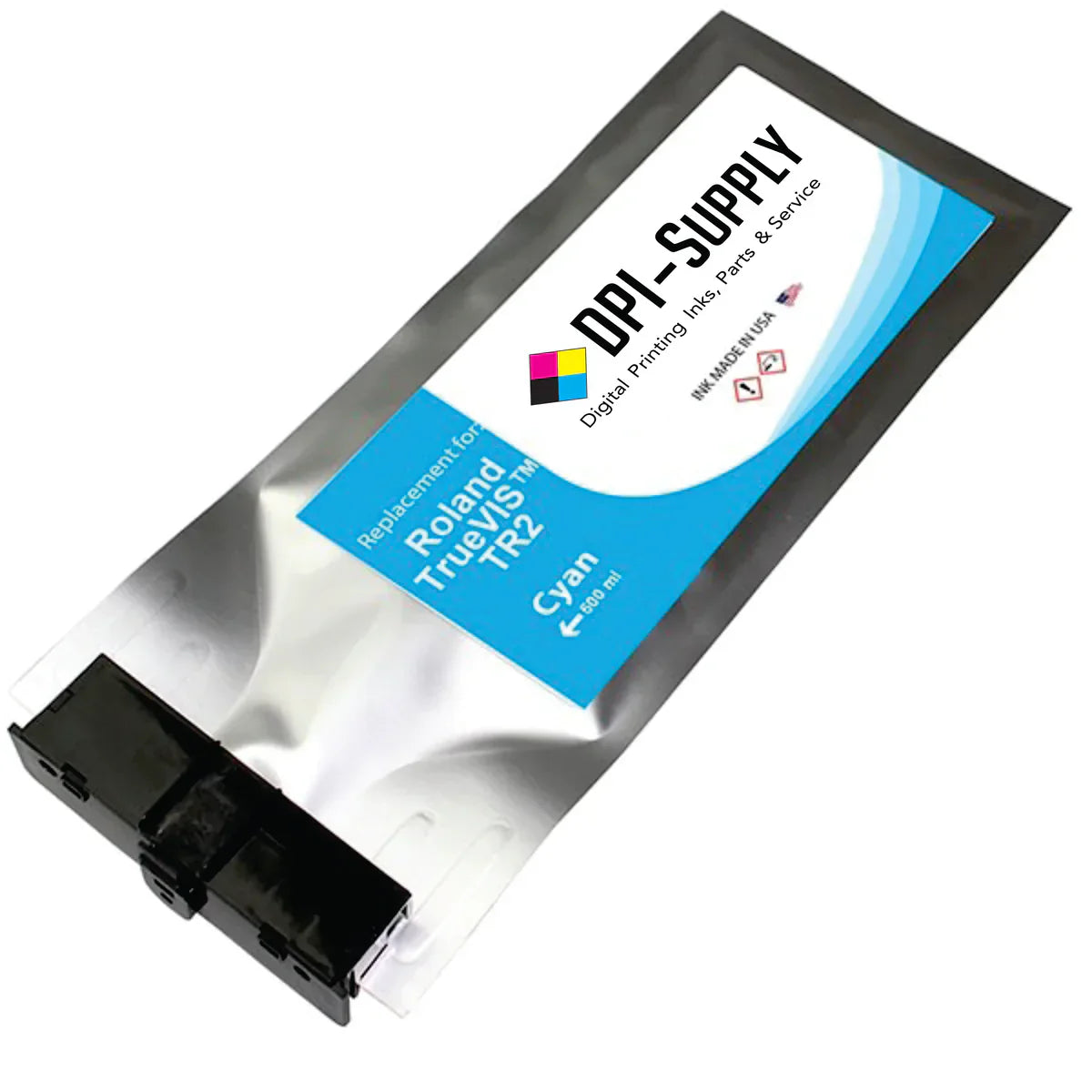
The Roland TrueVIS TR2 replacement ink is one of the most popular alternatives for TrueVIS printers. I was introduced to this ink by a Roland distributor from South America who insisted on US‑made ink for better consistency. After testing it extensively, I became a certified Roland technician and learned that the TR2 formula provides the same outdoor durability and gamut as original cartridges. Because Roland and other manufacturers often buy their ink from the same large chemical companies, high‑quality alternatives can match OEM performance when produced by reputable partners. If you’re weighing your options, read our in‑depth comparison Roland TrueVIS TR2 replacement ink vs OEM ink for real data on color gamut, drying time and cost. When you do switch, flush the lines as recommended and monitor your profiles for any minor adjustments. For many print shops, the savings are immediate and the color differences negligible.
Maintenance and Calibration Best Practices
Consistent maintenance prevents many color issues before they start. Make it a habit to run a nozzle test every day you print. If you ran the machine today, clean it today—that’s the mantra I share with every technician I train. A quick wipe removes dried ink that can bounce onto the print head carriage and cause streaks. Logging maintenance activities also helps spot patterns; if you find you’re cleaning more frequently, it might indicate low humidity or worn dampers. Beyond cleaning, print daily or weekly to keep ink flowing, control room humidity between 40–60 %, and store media properly to avoid dust. Keep spare wiper blades, cap tops and dampers on hand so you can replace them at the first sign of wear. And always schedule firmware updates and professional tune‑ups to ensure your machine stays within spec.
Test print routine
Establish a routine: run a test print, review the results and record them. The chart provided by some dealers helps you track which nozzle clogs appear and when you performed cleaning. Use it to troubleshoot recurring problems and decide when to replace parts or call a technician. Don’t wait until you have a large job to discover an issue—catch problems early and you’ll avoid costly reprints.
Real Stories from the Field
Authentic experience turns theory into practical advice. When I left screen printing after nearly four decades, I entered the digital ink business with no corporate backing. A non‑compete forced me into running a Speedway gas station for two years, but that detour only strengthened my resolve. Later, while tie‑dyeing shirts at a local company, a friend introduced me to alternative digital inks. I approached Mimaki, Mutoh and other brands at a trade show to get certified equipment. Only Mimaki sat down with me, and they insisted on a cheque before letting us sell their printers. That partnership launched my journey into third‑party inks. In 2018 I earned my Roland technician certification, met the owner of an American ink manufacturer and realized that big brands like Roland, Mimaki and HP outsource their ink production. Learning that fact was liberating—it meant competing with them wasn’t forbidden; it was business. I now sell tens of thousands of gallons of ink without sacrificing quality. From helping a client save hundreds on Roland printer ink to advising shops on daily cleaning, these experiences prove that the right supplies and maintenance can overcome color challenges.
Another story that sticks with me involves Frank, a print shop owner who relied on expensive OEM ink. When his supplier raised prices again, he switched to my alternative. The color remained stunning, and he pocketed the difference. Another customer, Brady, publicly praised our inks online for matching the OEM gamut. Success stories like these are the reason I continue to test every batch of ink and never settle for products that don’t meet my standards.
Conclusion and Final Thoughts
Color problems aren’t random; they’re signals pointing toward calibration, environment or ink quality. By understanding why your Roland prints may be off and following a disciplined process—calibrating monitors, using correct profiles, controlling your environment, choosing high‑quality Roland ink, and cleaning your printer daily—you can achieve reliable, vibrant results. Whether you’re pondering “Why Are My Roland Prints Coming Out the Wrong Color? Common Causes and Solutions” or comparing Roland TrueVIS TR2 replacement ink to OEM cartridges, the path to consistent color is within reach. Adopt the best practices outlined here, learn from the experiences of those who’ve walked this path, and you’ll spend more time delighting customers and less time troubleshooting.